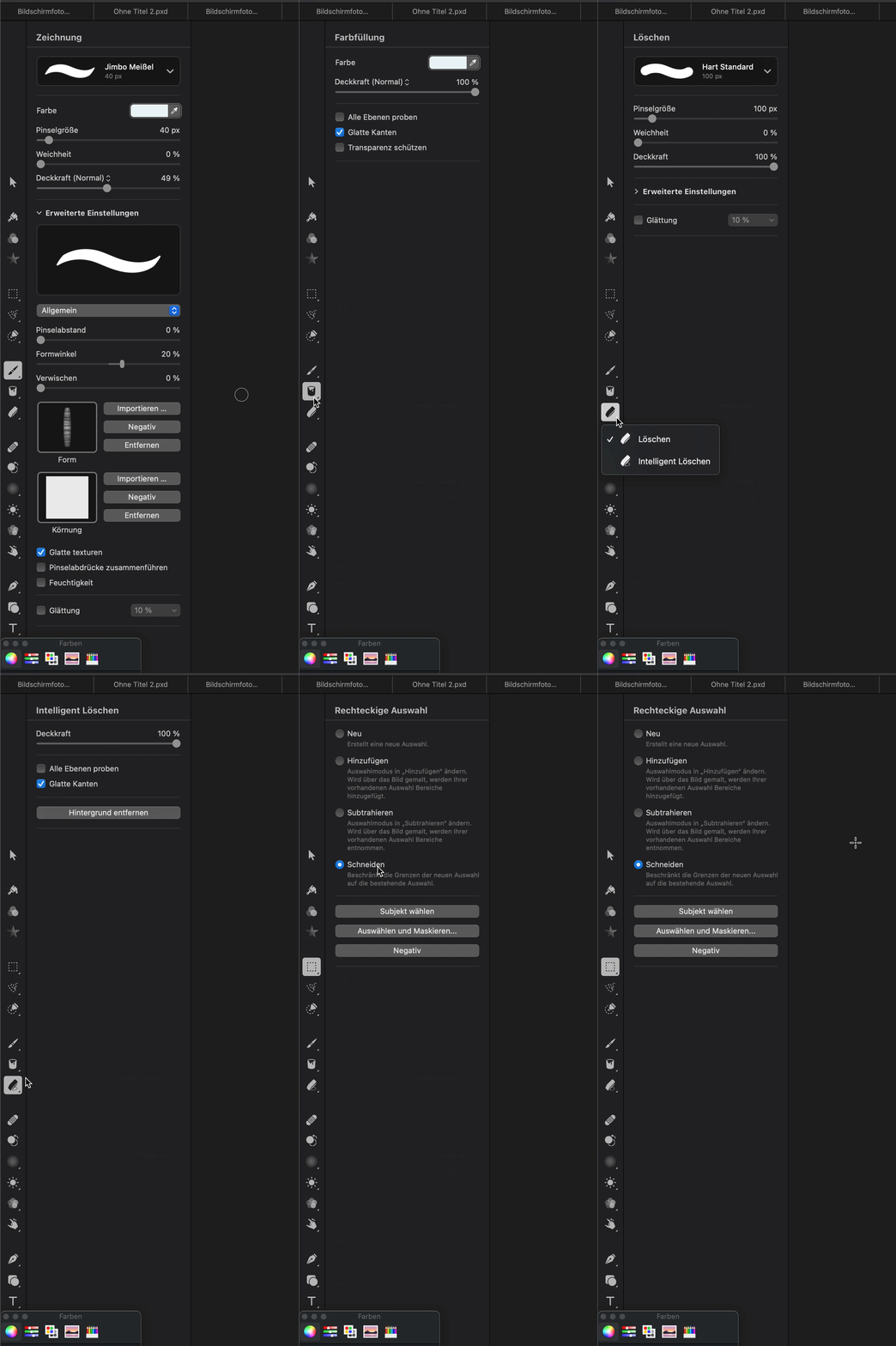
| This is neat with some fun features. It's hard to make something that complements the pretty powerful built-in screenshot and measurement tools of macOS. I take a lot of screenshots with annotations and use Cmd+Shift+4, Skitch and a custom script/app to upload images to my server. After using Shottr for the first time, some unordered feedback: - The erase tool in addition to blur/mosaic is great. And non-destructive, like the other options. - Multiple arrow styles, even curved! But, a more curved arrow style would be nice. I love the dynamic Skitch arrow [1], the main reason I still use it to be honest. - Drag&Drop an image quickly to save it somewhere, nice. But it's not as discoverable as Skitch, with its prominent bottom tab. Took me a bit to find the option, after mousing over the toolbar buttons. And apparently you can just Ctrl+Drag on the image itself to drag the file, interesting. - Scrolling capture is fun. There are other apps/extensions that capture full web pages, but this does arbitrary capture of anything that is scrollable. Although it doesn't quite work in a multi column Finder [2] - Undo/Redo would be nice. I guess it's planned or buggy, because the Undo menu item is there but disabled? - No upload to my own private server. Skitch does that, but doesn't support private key auth (thus my custom upload script/app). I guess you plan to monetize this by offering your own image hosting service? I would pay some bucks for a good upload function to my own server, with various options for auth, file names etc. - In general, trying to put all the options in the toolbar might not be the best way. You have to hover over buttons to see their function. Buttons have a second level once you do something, so to get from the erase-tool-settings back to adding a line, I have to click the "back" button, then the line button instead of just an always visible line button. There will probably be more features in the future, with more options. Maybe it's better to add a sidebar and have more room to explicitly show the options and grow functionality. - Always-on color selector and pressing Tab to copy the value is good. Although it doesn't save time compared to the built-in Digital Color Meter, which works without taking a screenshot. - The size of a thing should change as you're dragging the handle, not only after you're finished [3] - Dragging an image on the Dock icon or the "Welcome to shottr" window doesn't work. To edit a screenshot taken with Cmd+Shift+4 I would have to go to the shottr menu icon > ... more > Open File? - How can I pan a big screenshot with a mouse? There are no scrollbars and Cmd/Option/Ctrl/Shift-mousewheel doesn't work, neither does dragging. Edit: Right mouse button... tl,dr: Cool stuff, but the workflow and discoverability should be optimized. I'll keep using this, if only for the measuring tool and the curved arrows :) How about some Catmull-Rom arrows that follow a path? 1: https://sc.robsite.net/files/1655502037-skitch-arrow.gif 2: https://sc.robsite.net/files/1655501372-SCR-20220617-wlz.png 3: https://sc.robsite.net/files/1655503254-shottr-resize-on-cha... |




thanks again for the feedback!